
Weintek HMI Buttons and Objects Disappear: Modbus Troubleshooting
Table of Contents
Weintek’s troubleshooting guidance explains that an object containing a read address may disappear when the HMI cannot obtain that value. An object used only to write a value may remain visible. This prevents an unreadable device state from being presented as a valid default. WeintekUSA: Device No Response Troubleshooting
However, failed communication is only one explanation. An object can also be hidden by an interlock or security setting.
The first question is whether the missing object has valid data. If it does, inspect its visibility conditions. If it does not, trace the exact Modbus request that fails.
This guide applies to EasyBuilder Pro projects using Modbus TCP or RTU. Settings and diagnostic tools vary by HMI model, software version, and selected driver.
1. Record What Disappears and When
Before changing the project, save a backup and record:
- The HMI model, operating-system version, and EasyBuilder Pro version.
- The PLC or Modbus device model.
- The exact driver selected in the project.
- The affected window and object names.
- Whether the problem occurs on the panel, in simulation, or both.
- Whether any PLC values still update.
- Recent changes to addresses, device settings, security, or communications.
Inspect the problem without pressing machine-control buttons. Online simulation and diagnostic tools can communicate with real equipment; they are not automatically isolated test environments.
Use the symptom pattern to choose the next check.
| Observed behavior | First check |
|---|---|
| Static graphics remain, but several device-linked objects disappear | Whether the affected read requests succeed |
| Only one object is missing | Its device, address, data type, read length, and visibility settings |
| Objects disappear after logout or a machine-state change | User privileges and interlock conditions |
| The problem starts after changing drivers or transport | Object references and the new driver’s address convention |
| Simulation works but the physical panel fails | Actual panel network or serial configuration and deployed project |
| Objects display but values are incorrect | Address mapping and data interpretation |
These are diagnostic starting points, not proof of a particular fault.
- Related Product
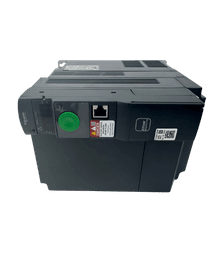
Need a Replacement Altivar Drive?
Browse new original Altivar drives for maintenance, troubleshooting, and replacement projects.
- New original parts
- Fast response
- Global shipping
2. Inspect Every Address Used by the Missing Object
Open the affected object in EasyBuilder Pro and identify all of its dependencies.
Depending on the object, these can include:
- A read address used to display its state.
- A write address used when the operator touches it.
- An interlock address.
- An indirect address or index.
- A security or visibility condition.
A correct write address does not prove that the read address is valid. Likewise, a valid displayed value does not prove that an interlock address is being read successfully.
Compare one missing object with a working object connected to the same device. Look for differences in device selection, station, address type, length, and configuration.
Keep this comparison focused. Changing global settings when other requests already work can introduce another fault.
3. Use Diagnostics to Find the Failed Read
On supported cMT and cMT X models, use Diagnoser to inspect the affected object and its communication request. WeintekUSA identifies the Object and Packet views as useful for locating failed requests. An object remaining at “Polling…” and a failed packet provide a more specific lead than a general communication message.
Weintek documents enabling Diagnoser under System Parameter Settings → Remote, then accessing it from the cMT Viewer right-click menu. Confirm availability for your model and version. Some objects without register dependencies do not appear in the object list. Weintek: cMT Diagnoser
Use monitoring first. Do not write values, force machine states, or change interlock bits simply to make an object appear.
Record the failed request’s device, station, address, and result. Then compare those details with the server’s documented Modbus map.
If your HMI does not support this Diagnoser workflow, use the diagnostic method specified for its model and driver.
4. Check the Modbus Address Convention
An address printed in a PLC manual is not necessarily the number entered directly into every HMI driver.
The Modbus specification defines zero-based addresses within the protocol data unit, while the device manufacturer determines how its application data maps to Modbus. Check both the server documentation and the selected Weintek driver’s connection guide. Modbus Application Protocol V1.1b3, section 4.4
Verify the complete request:
| Check | What must agree |
|---|---|
| Data area | Coil, discrete input, holding register, or input register |
| Address convention | The driver’s entry format and the server’s documented mapping |
| Function | The operation supported for that data area |
| Quantity | The full requested range must exist |
| Data representation | The object format must match the intended application value |
Modbus uses different read functions for coils, discrete inputs, holding registers, and input registers. A correct-looking number in the wrong data area can still produce an invalid request.
Do not apply “subtract one from every address” as a universal fix. Determine whether the driver already performs that translation.
Also check the entire span of a multi-register object. Its starting address may be valid while later registers fall outside the configured range.
A Safe Comparison Test
In a controlled diagnostic copy of the project, use a read-only display tied to one documented, readable register. Compare its result with the server’s own monitoring tools.
If that read works, investigate how the missing object differs. If it fails, resolve the driver, mapping, or connection issue before adding complexity.
Keep temporary diagnostic objects out of the production project unless they are reviewed and intentionally retained.
- PLC Solutions
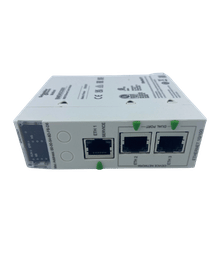
Find the Right PLC for Your System
Explore new original PLC CPUs, I/O modules, power supplies, and communication units for maintenance and automation projects.
- New original parts
- Fast response
- Global shipping
5. Understand Local and Remote Device Settings
Do not change every Ethernet PLC to “Remote.”
In EasyBuilder Pro’s documented device architecture:
- A Local Device is connected to the local HMI.
- A Remote Device is connected through another HMI.
Therefore, “Local” does not mean that the PLC address is merely internal HMI memory. An Ethernet-connected device can belong to the local HMI’s device configuration.
The manual explains these distinctions in its local- and remote-device setup sections. Follow the actual communication topology and the selected driver’s instructions. Weintek EasyBuilder Pro V6.10.01, Chapter 5, sections 5.2.2–5.2.3
After a project conversion or device change, confirm that the affected objects reference the intended device entry. Correct settings on one device entry will not repair objects still pointing to another.
6. Check Interlocks and Visibility When Reads Are Valid
If the required values are readable, inspect the object’s display conditions.
For example, the EasyBuilder Pro manual documents Hide when disabled for a Set Word object’s interlock. When its configured condition is not satisfied, the object is hidden. Other object types have their own available security and visibility settings. Weintek EasyBuilder Pro V6.10.01, Chapter 13, page 13-22
Check:
- Whether hiding is enabled.
- Which value controls the condition.
- Whether that value is valid and current.
- Whether the comparison matches the intended machine state.
- Whether the current user has the required privileges.
- Whether the object’s appearance changes with its state.
A hidden object may be behaving exactly as designed. Confirm the intended behavior with the project owner before altering it.
Do not remove an interlock or privilege restriction to restore visibility on a running machine. Correct an identified configuration error through the approved change process.
7. Separate Connection Problems From Request Problems
If no relevant read succeeds, review the connection. If some reads succeed, prioritize the failing requests.
For Modbus TCP, check the destination IP, selected LAN interface, route, configured server port, and whether the intended Modbus service is available.
For Modbus RTU, compare the selected COM interface, station number, serial format, and cable pinout with the equipment documentation. Inspect or change wiring only under the applicable safe maintenance procedure.
For the broader connection workflow, see Weintek HMI “PLC No Response”: Serial and Ethernet Fixes.
Avoid treating a successful ping, a link light, or a general “connected” indication as proof that the missing object’s register is readable. Verify that specific transaction.
8. Investigate Background Requests Without Removing Production Functions
A communication warning can persist even when the displayed page looks normal.
Review background functions that reference the same device, such as alarm monitoring, data sampling, macros, and data transfers. Identify obsolete or incorrectly mapped addresses through diagnostics and project review.
Do not delete alarm or monitoring functions from the live application to silence a message. If isolation testing is necessary, perform it in a controlled project copy and preserve the original configuration.
Similarly, increasing a timeout is appropriate only when evidence shows that valid responses arrive too late. It does not repair an incorrect address or visibility condition.
9. Verify the Repair Before Returning to Normal Operation
Change one identified cause at a time, then compile and deploy through the normal maintenance process.
Confirm that:
- The intended object appears under the correct conditions.
- Its displayed state agrees with the actual device value.
- Previously working objects still behave correctly.
- Login and interlock behavior remain intentional.
- Communication warnings no longer recur during the relevant operating sequence.
- Any command function is tested only under an approved machine test procedure.
Where required, verify startup and communication-recovery behavior during a planned test. Restore diagnostic access settings according to site policy and save the corrected project.
If the problem remains unresolved, provide support with the project version, object configuration, server register map, and a captured failing request. These details are more useful than “the screen is blank.”
- HMI Replacement
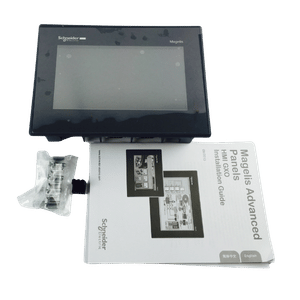
Upgrade or Replace Your HMI
Find compatible HMI panels for discontinued models, machine upgrades, and operator interface replacement.
- New original parts
- Fast response
- Global shipping
Frequently Asked Questions
They may have different data dependencies. A navigation function can operate without the same device read required by a numeric display. Inspect the missing object’s read and visibility dependencies rather than assuming that all objects should fail together.
Review the new driver, destination, station or unit handling, and address syntax. Also check that all affected objects were reassigned correctly. A transport change does not establish that the old project references remain valid.
Do not do so without a reviewed interface design. The operator must be able to distinguish valid information from unavailable data, and control functions must retain their intended permissions and interlocks.
Power your projects with brand-new, original Omron, Mitsubishi, Schneider PLC – in stock, ready now!
When Should You Consider Hardware Replacement?
Missing objects alone do not justify buying another HMI.
Consider hardware replacement only when model-specific diagnostics isolate a physical fault after configuration, communication, and project causes have been assessed.
If a replacement is needed, send Kwoco the full HMI reference, required communication interfaces, panel dimensions, quantity, and destination for sourcing confirmation. Have the responsible engineer check project compatibility before accepting an alternative model.
Contact Us
Just fill out your name, email address, and a brief description of your inquiry in this form. We will contact you within 24 hours.
Product Category
Hot Sale Products
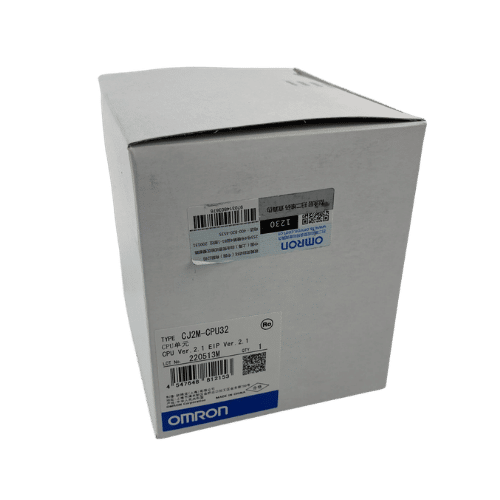
Omron CPU Unit CJ2M-CPU32
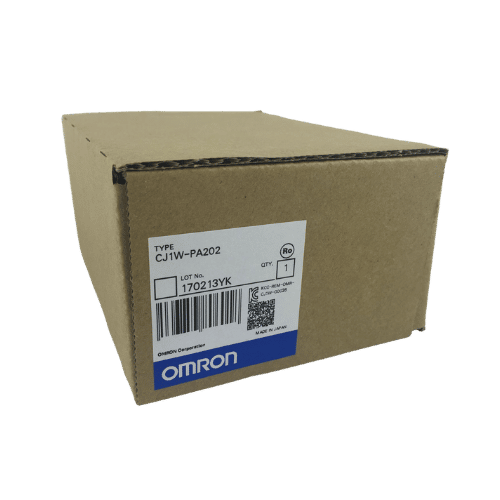
Omron PLC CJ1W-PA202 Supplier in China
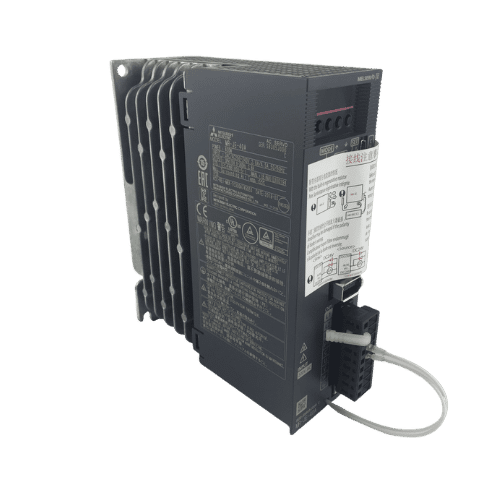
Mitsubishi MR-JE Series 400w Servo Drive MR-JE-40A
Need a Fast Match?
Share your model or spec and our team will help you find the right fit-fast.
- Expert support
- Quick response
- Competitive price
- +86-755-81481609
- [email protected]
You May Also Find These Topics Interesting

How to Solve PLC Communication Problems
How to Solve PLC Communication Problems Programmable Logic Controllers (PLCs) are the backbone of modern industrial automation. They are specialized computers designed

PLC vs PC: Key Differences in Industrial Automation
In the realm of industrial automation, the choice between a Programmable Logic Controller (PLC) and a Personal Computer (PC) can significantly impact
Understanding Human-Machine Interfaces (HMIs) in Industrial Automation
Understanding Human-Machine Interfaces (HMIs) in Industrial Automation In the rapidly evolving world of industrial automation, Human-Machine Interfaces (HMIs) play a pivotal role